In part 1 you learned how to put an old VCR in use in order to broadcast media content stored in your PC to all the TV sets in your house.
Next we'll add some touches that will make the whole system more autonomous.
Sharing your desktop with the video feed
So far so good, but, what if you want to continue using your PC while broadcasting video to the rest of your house?.
Very easy, all you have to do is enable the "extend my windows desktop onto this monitor" option for your TV set on your display applet. This will let you integrate your TV set to your desktop giving you more free space (we shall call it the "TV SCREEN"), all you have to do is drop your video screen there and you will have your desktop all free, just remember any noise on your PC will be heard on the TV, you can disable the mouse click to attenuate this "problem".
A complete explanation can be found HERE.
Controlling your broadcasts remotely
Walking back and forth to your PC to control the broadcasts seems like a bad idea unless you want an incentive to stay active at home.
VLC Media Player comes to the rescue, this little sweet piece of software is capable to handle mostly all the video features you may think or need.
VLC comes with a http interface that enables remote web based controlling, to activate it open a windows command shell and type this at the VLC's home directory, most likely C:\program files\videolan\VLC:
vlc -I http [--http-src "C:\Documents and Settings\baboo\mytechvideos" --http-host 192.168.1.100:31337] --fullscreen --video-x 1024 --video-y 0
Substitute the quoted string with the directory where most of your media is. Also you can chance the number of the port "31337" to whatever you want.
FYI: You cannot reposition the "embedded" VLC player onto the "TV SCREEN", only the interface modules are able to use the video-x and video-y options.
At this point you can close the command shell window, VLC will start running playing the first item on the directory you pointed to.
Piece of advice: go to your windows firewall and make sure only PCs in your network can connect to your VLC host, this will attenuate but not necessarily avoid someone from the internet exploiting or connecting to this open port, remember to configure and recheck your router/firewall and watch out for software updates or any security issues.
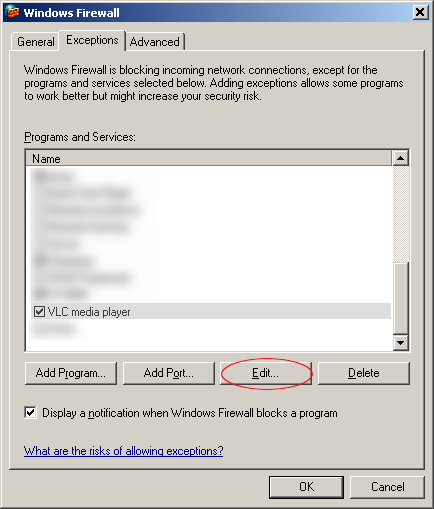
Go to windows firewall, select VLC media player and then click edit,
Next we'll add some touches that will make the whole system more autonomous.
Sharing your desktop with the video feed
So far so good, but, what if you want to continue using your PC while broadcasting video to the rest of your house?.
Very easy, all you have to do is enable the "extend my windows desktop onto this monitor" option for your TV set on your display applet. This will let you integrate your TV set to your desktop giving you more free space (we shall call it the "TV SCREEN"), all you have to do is drop your video screen there and you will have your desktop all free, just remember any noise on your PC will be heard on the TV, you can disable the mouse click to attenuate this "problem".
A complete explanation can be found HERE.
Controlling your broadcasts remotely
Walking back and forth to your PC to control the broadcasts seems like a bad idea unless you want an incentive to stay active at home.
VLC Media Player comes to the rescue, this little sweet piece of software is capable to handle mostly all the video features you may think or need.
VLC comes with a http interface that enables remote web based controlling, to activate it open a windows command shell and type this at the VLC's home directory, most likely C:\program files\videolan\VLC:
vlc -I http [--http-src "C:\Documents and Settings\baboo\mytechvideos" --http-host 192.168.1.100:31337] --fullscreen --video-x 1024 --video-y 0
Substitute the quoted string with the directory where most of your media is. Also you can chance the number of the port "31337" to whatever you want.
FYI: You cannot reposition the "embedded" VLC player onto the "TV SCREEN", only the interface modules are able to use the video-x and video-y options.
At this point you can close the command shell window, VLC will start running playing the first item on the directory you pointed to.
Piece of advice: go to your windows firewall and make sure only PCs in your network can connect to your VLC host, this will attenuate but not necessarily avoid someone from the internet exploiting or connecting to this open port, remember to configure and recheck your router/firewall and watch out for software updates or any security issues.
Go to windows firewall, select VLC media player and then click edit,
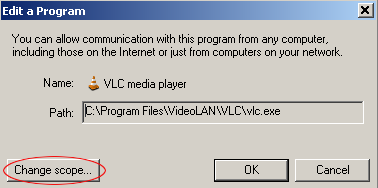
Click on change scope:
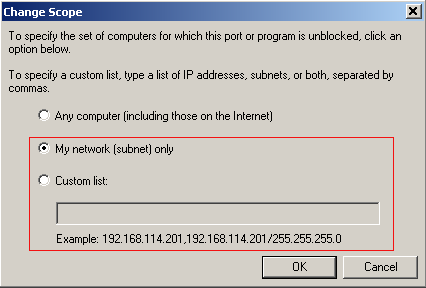
Select either My network or custom list (write allowed hosts as the example shows):
Point your PocketPC, zaurus or wireless laptop web browser to the VLC's host PC, in this case 192.168.1.100:31337:
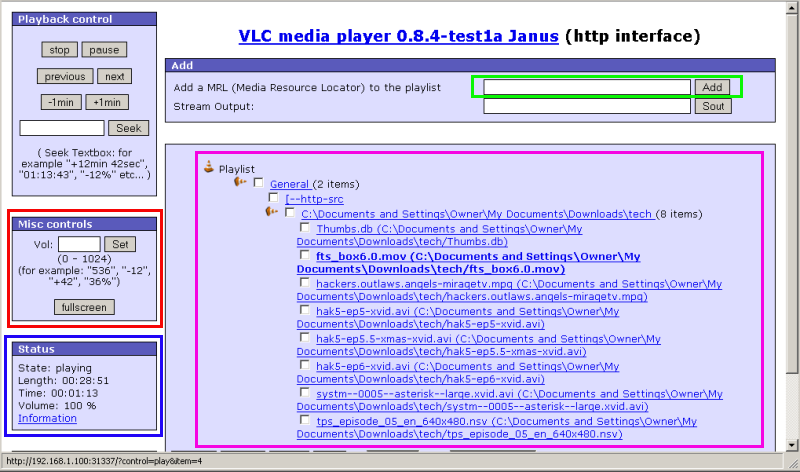
As you see is an easy and intuitive interface to work with, I will explain the main features:
The red square encloses the full screen and the volume options.
The blue square encloses the the current status of the player, check for it playing, stopped or paused statuses, just hit refresh in your browser to make sure.
The green box lets you add more directories or media files to your playlist.
The purple box encloses your playlist, all the files contained here will play sequentially starting with the one on the top. Also you can click on any of the links if you change your mind on what to watch first.
Finally IPTV:

Damn Darren you have left yourself go!!!, a shout to Frank Linhares from techphile.ca
Well this is all by know folks thanks for coming by, soon I'll bring more stuff, also keep in mind this blog updates daily with all the stuff I Digg around.
Bonlebon

